

Getting Started with Kai
Access
Section titled “Access”Kai is now in Public Beta and available to all users in supported stacks.
Enabling Kai
Section titled “Enabling Kai”Every user can see the Kai button in their project (on supported stacks). To enable Kai:
- Organization Admins can enable the feature directly from the chat screen when first clicking the Kai button.
- Other users need to ask their Organization Admin to enable the feature, or contact Keboola Support for assistance.
- Kai can also be enabled via Settings → Features in your project.
Opening Kai
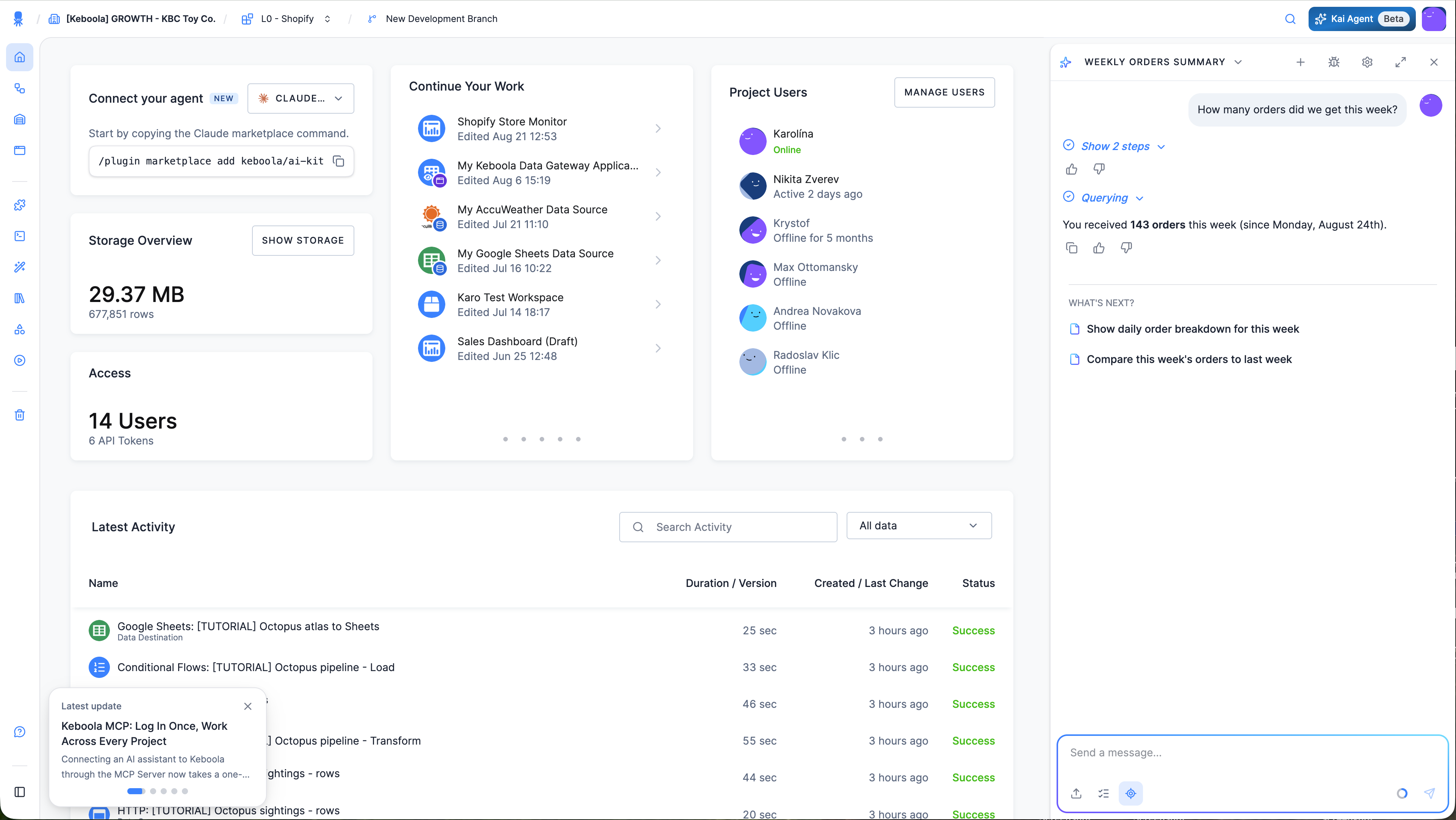
Section titled “Opening Kai”Click the Kai Agent button in your project’s top bar, or use keyboard shortcuts:
| Shortcut | Action |
|---|---|
| A | Open the chat window (shows recent conversation) |
| Shift + A | Open a new chat |
Example Prompts
Section titled “Example Prompts”Get oriented in an unfamiliar project
Section titled “Get oriented in an unfamiliar project”- “What is the purpose of this project? Summarize what it does end to end.”
- “What data is being ingested, from which sources, and how often?”
- “What output tables does this project produce, and what feeds each one?”
- “Trace the lineage from the raw source tables to the final output tables.”
Understand a specific part of it
Section titled “Understand a specific part of it”- “Explain what this transformation does and why the joins are shaped this way.”
- “Which configurations write to the
orderstable, and which read from it?” - “Is anything here unused? Tables nothing reads, configurations nothing runs.”
Debug a failure
Section titled “Debug a failure”- “Analyze the latest failed job and tell me what went wrong.”
- “This flow started failing last week. What changed in its configuration?”
- “Why did this job take 40 minutes when it usually takes 5?”
Maintain and improve
Section titled “Maintain and improve”- “Help me optimize the core pipeline to reduce costs.”
- “Which jobs in this project run longest, and what would you change first?”
- “This transformation full-loads every run. Can it be incremental?”
Build something new
Section titled “Build something new”- “Set up a Google Sheets extractor for this spreadsheet and load it into a new bucket.”
- “Create a SQL transformation that calculates monthly revenue per customer from
orders.” - “No connector exists for the Acme API. Build one with the Generic Extractor, using these API docs: https://api.acme.com/docs. Handle authentication and pagination.”
Building an integration for an API that has no ready-made connector is one of the stronger things to hand Kai — point it at the API documentation and let it work out the Generic Extractor configuration.
For prompts that get better answers, see Effective Prompting in Best Practices.
Action Approval
Section titled “Action Approval”Before Kai changes anything, it requests your approval: creating a configuration, modifying a transformation, or running a job. Read-only operations do not require approval.
Each request shows the exact parameters Kai will use.
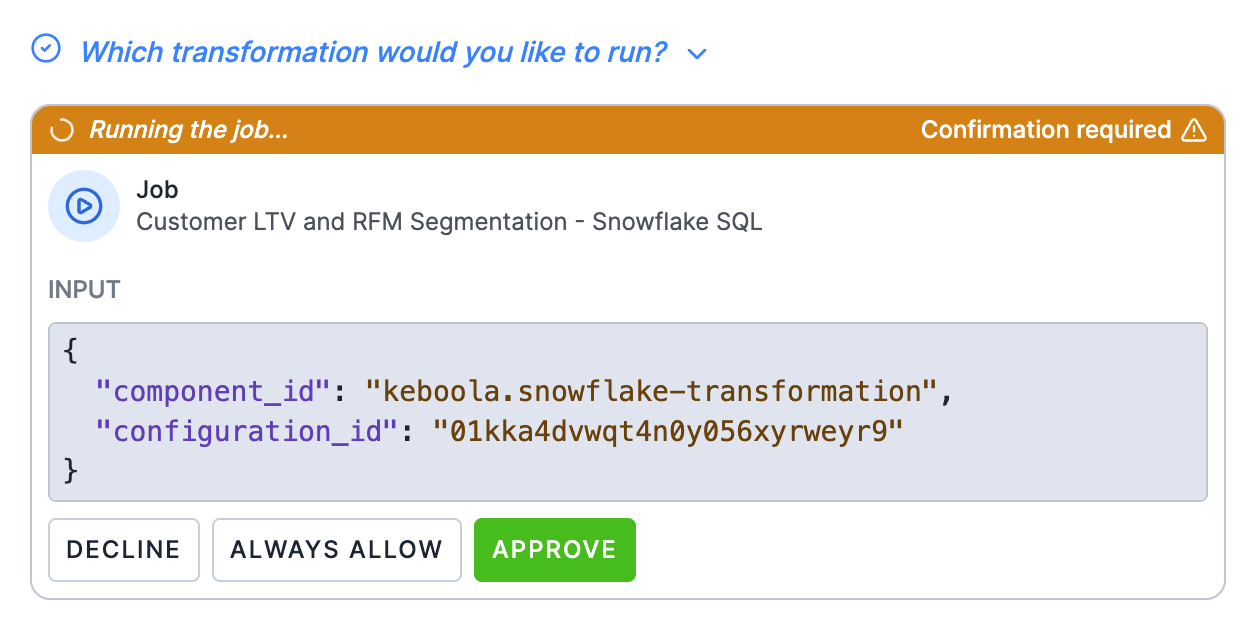
You have three options:
- Approve — run this action once.
- Decline — do not run it.
- Always allow — run it, and stop asking for that tool in future.
All actions are logged in your project’s audit trail.
For more granular control, see Tool Permissions in Kai Settings.
Chat Controls
Section titled “Chat Controls”The chat panel has controls in two places: along the top of the panel, and below the message box.
Panel header
Section titled “Panel header”| Button | Control | What it does |
|---|---|---|
 | New chat | Start a fresh conversation. Kai keeps no context from the previous one. |
 | Report a bug | Collect debug details for the current conversation, including the chat ID, trace link, project and stack. Include them when you report a problem so Keboola support can investigate. |
 | Settings | Open your Tool Permissions and System Instructions. These are personal to you and apply to this project only. Project-wide settings live in Settings → Kai Agent. |
 | Expand | Widen the panel. The expanded view also lists your chat history, so you can reopen a previous conversation. Useful when Kai returns a long table or diagram. |
 | Close | Close the panel. Your conversation is kept. |
Below the message box
Section titled “Below the message box”| Button | Control | What it does |
|---|---|---|
 | Upload files | Attach a file or image to your message. Useful for a screenshot of an error, a sample CSV, or a spec you want Kai to work from. |
 | Plan mode | Kai explores your project read-only, drafts a plan of what it intends to do, and waits for your approval before changing anything. Use it for larger requests, such as setting up a pipeline or restructuring a set of transformations. You can also start it by typing /plan. |
 | Follow mode | Your browser navigates along as Kai works, so you can watch what it reads and modifies. Toggle it on or off at any time. |
Contextual Awareness
Section titled “Contextual Awareness”Kai is aware of what you’re currently viewing in the Keboola UI. Every message you send includes your current page location, so Kai understands your context without needing explicit references.
- Automatic context capture — When you send a message, Kai receives your current URL path (e.g., which configuration, job, or table you’re viewing)
- Context-aware responses — Kai uses this information to provide relevant suggestions and can reference “this configuration” or “the current job” naturally
- Dynamic updates — Kai checks for the latest context during conversations, so you can navigate to different pages and Kai will adapt
This means you can say “analyze this job” while viewing a job, and Kai knows exactly which job you mean. Turn on Follow mode to watch it move through your project as it works.
Tips for New Users
Section titled “Tips for New Users”- Start with read-only operations — explore data and configurations first
- Be specific — reference exact table names and component IDs
- Use dev branches — create a branch in the UI, then work with Kai in that branch
- Ask for explanations —
"Explain this SQL query step by step" - Don’t type secrets in chat — Kai uses secure forms for credentials. When setting up extractors or connections, tell Kai what you need and it will prompt you through secure configuration interfaces
Rate Limits
Section titled “Rate Limits”Kai is free during the public beta period.
Each user receives 150 turns (messages) per month per project on contracted plans. The limit resets at the beginning of each calendar month.
- Pay-As-You-Go (PAYG) plans have a lower limit of 50 messages per user per month
- Your current usage is displayed in the chat interface
- Need more? Contact Keboola Support to discuss custom limits for your project
Troubleshooting
Section titled “Troubleshooting”| Issue | Solution |
|---|---|
| Kai seems slow | Complex operations take time. Look for “Thinking…” indicator. |
| Kai doesn’t understand | Be more specific with names and IDs. Break complex requests into steps. |
| Actions fail | Check permissions. Verify components exist. Try “retry the last action”. |
| Context confused | Start a fresh chat. Keep conversations focused on one task. |
Next Steps
Section titled “Next Steps”- Kai Settings — Configure Tool Permissions and System Instructions
- Use Cases & Examples
- Best Practices